




Introduction
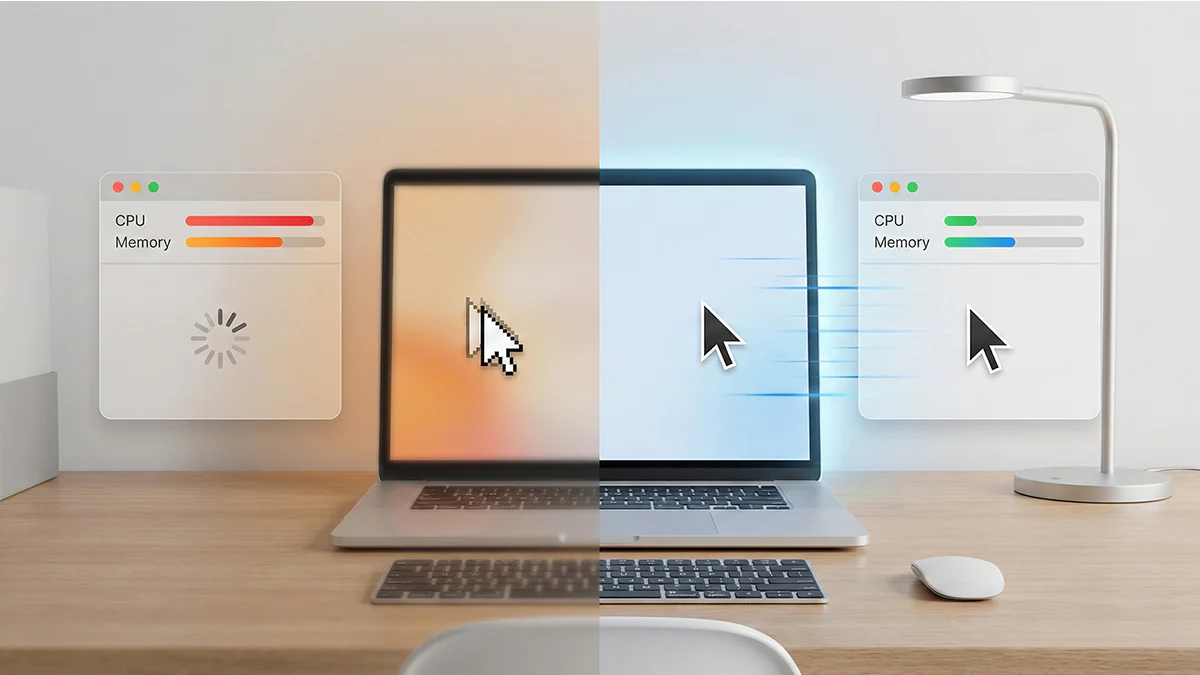
A slow laptop can be frustrating and affect productivity, entertainment, and daily work. Many Windows users experience problems like slow startup times, lagging applications, freezing screens, and delayed performance after using their laptops for some time. These issues often happen because of unnecessary background programs, low storage space, outdated software, or hardware limitations.
- Introduction
- Restart Your Laptop Regularly
- Remove Unnecessary Startup Programs
- Free Up Storage Space
- Uninstall Unused Applications
- Update Windows and Drivers
- Scan for Viruses and Malware
- Disable Background Apps
- Use Disk Cleanup Tools
- Upgrade to an SSD
- Increase RAM if Possible
- Reduce Visual Effects
- Keep Your Browser Optimized
- Avoid Overheating
- Defragment Your Hard Drive
- Reset Windows if Necessary
- Practice Regular Laptop Maintenance
- Conclusion
The good news is that there are many simple ways to speed up a slow Windows laptop easily without spending a lot of money. Small changes in settings, storage management, and maintenance can improve laptop performance significantly.
Whether you use your laptop for work, gaming, study, or browsing, optimizing system performance can make the device faster and more efficient.
Restart Your Laptop Regularly
Many people keep their laptops running for long periods without restarting them. Restarting helps clear temporary files and refresh system processes.
Benefits of Restarting
- Clears background memory usage
- Stops unnecessary processes
- Improves system responsiveness
- Helps install updates properly
A simple restart can sometimes solve performance problems quickly.
Remove Unnecessary Startup Programs
Many applications automatically start when Windows boots up. Too many startup programs can slow down laptop performance.
How Startup Programs Affect Performance
- Increase boot time
- Use system memory
- Run in the background constantly
Disabling unnecessary startup apps can help the laptop start faster.
Free Up Storage Space
Low storage space is one of the most common reasons for slow laptop performance.
Ways to Free Storage
- Delete unused files
- Remove duplicate photos and videos
- Empty recycle bin
- Uninstall unnecessary software
- Move files to external storage
More free space helps Windows run more smoothly.
Uninstall Unused Applications
Many laptops contain software that users rarely use. Unnecessary programs consume storage and system resources.
Benefits of Removing Unused Apps
- Improves speed
- Reduces background activity
- Creates more storage space
- Improves startup performance
Regularly checking installed software can help keep the system optimized.
Update Windows and Drivers
Outdated software can reduce system performance and create compatibility issues.
Important Updates
- Windows system updates
- Graphics drivers
- Audio drivers
- Security updates
Keeping the system updated improves both speed and security.
Scan for Viruses and Malware
Viruses and malware can seriously slow down a laptop. Harmful programs may run secretly in the background and consume system resources.
Signs of Malware Infection
- Slow performance
- Frequent pop-ups
- Browser redirects
- Unusual background activity
Using trusted antivirus software can help remove threats and improve performance.
Disable Background Apps
Some applications continue running even when not actively being used.
Why Background Apps Slow Laptops
- Consume RAM
- Use CPU resources
- Reduce battery performance
Disabling unnecessary background applications can improve speed and responsiveness.
Use Disk Cleanup Tools
Windows includes built-in cleanup tools that remove temporary and unnecessary files.
Files That Can Be Removed
- Temporary files
- Cache data
- Old update files
- System logs
Cleaning these files regularly helps maintain system performance.
Upgrade to an SSD
One of the best ways to improve laptop speed is replacing a traditional hard drive with a solid-state drive (SSD).
Benefits of SSD Storage
- Faster boot times
- Faster file loading
- Better application performance
- Improved overall responsiveness
SSDs are much faster than older hard disk drives.
Increase RAM if Possible
Low RAM can make multitasking difficult and slow down performance.
Signs You Need More RAM
- Frequent freezing
- Slow multitasking
- Browser lag
- Delayed application loading
Upgrading RAM can greatly improve performance for heavy users.
Reduce Visual Effects
Windows includes animations and visual effects that may use extra system resources.
Examples of Visual Effects
- Window animations
- Transparent effects
- Motion transitions
Reducing these effects can improve speed, especially on older laptops.
Keep Your Browser Optimized
Web browsers often consume a large amount of memory.
Tips for Faster Browsing
- Remove unnecessary extensions
- Clear browser cache
- Limit open tabs
- Update browser regularly
Optimized browsing can improve overall laptop performance.
Avoid Overheating
Overheating can slow down laptop performance because the system reduces processing power to protect hardware.
Ways to Prevent Overheating
- Clean laptop vents
- Use cooling pads
- Avoid blocking airflow
- Keep the laptop dust-free
Proper cooling helps maintain stable performance.
Defragment Your Hard Drive
If your laptop uses a traditional HDD, disk fragmentation can reduce speed over time.
Benefits of Defragmentation
- Faster file access
- Improved loading times
- Better disk organization
Windows includes built-in tools for disk optimization.
Reset Windows if Necessary
If the laptop remains slow after trying different methods, resetting Windows may help.
Benefits of System Reset
- Removes unnecessary software
- Clears corrupted files
- Restores default settings
- Improves overall performance
Users should back up important files before performing a reset.
Practice Regular Laptop Maintenance
Regular maintenance helps keep laptops running smoothly for longer periods.
Maintenance Habits
- Update software regularly
- Clean storage monthly
- Scan for viruses frequently
- Avoid downloading suspicious files
Good maintenance reduces performance issues over time.
Conclusion
Learning how to speed up a slow Windows laptop easily can improve productivity, gaming, browsing, and overall user experience. Simple steps like removing unnecessary files, disabling startup programs, updating software, and scanning for malware can make a noticeable difference.
For older laptops, upgrading hardware like SSD storage or RAM can provide major performance improvements. Regular maintenance and smart usage habits help keep Windows laptops fast, efficient, and reliable for daily use.